 sheepdog
How to
Short guides.
Each guide is a few steps and the questions people ask about it. Everything here starts from Tug in the menu bar. Using sheepdog has the full reference.
- Connect your calendars
- Set your working hours
- Hold your place
- Let your team know
- Quiet Tug for a while
- Make Tug yours
- Install, update and move your settings
Connect your calendars
sheepdog reads every calendar macOS Calendar knows about, and signs in to Microsoft 365, Outlook.com and Google directly. It only reads. It never creates, changes or deletes an event.
Steps
- Open sheepdog. The Set up Sheepdog window walks you through it.
- Click Allow calendar access, then Allow when macOS asks. If you said no, choose Allow calendar access… from Tug's menu to open System Settings.
- On Connect calendars, click Connect… beside Microsoft 365 or Outlook.com and finish signing in in your browser. Beside iCloud, click Connect… and enter your Apple ID and an app-specific password made at account.apple.com. Other CalDAV takes the server address, user name and password. To add Google or Exchange, add the account in System Settings > Internet Accounts with Calendars turned on, and sheepdog reads it through macOS Calendar.
- Say when Tug should bark and whether he dresses up, then click Done.
- To come back later, choose Set up Sheepdog… from Tug's menu. Connected through Apple Calendar, in Settings on the Calendars tab, lists each account Apple Calendar holds and how many calendars it has, and updates by itself when you add or remove one. Direct sign-in (optional) below it holds the accounts sheepdog signs in to itself.
- Open Tug's menu. Your meetings for the next 12 hours are listed there.
Questions
A meeting is missing from Tug's menu.
sheepdog leaves out all-day events, events marked free and meetings you declined. Tentative meetings are left out too, unless you turn on Include tentative meetings in the Calendars tab. If none of those apply, choose Refresh calendars from Tug's menu.
Can I keep a calendar from barking?
Yes, for calendars read through Apple Calendar. In the Calendars tab, open the account under Connected through Apple Calendar and uncheck the calendar. The account then shows how many of its calendars Tug reads, such as 3 of 5 calendars. Every calendar is on at first, and a new one barks until you uncheck it.
Can it skip events that are only me?
Yes. Turn on Skip events with no other attendees in the Calendars tab. It is off at first.
Where is Google sign-in?
In Settings, on the Calendars tab, under Direct sign-in (optional). Choose Connect… beside Google and finish in your browser. sheepdog asks only to read your events and the list of your calendars. If your Google account is already in Internet Accounts, sheepdog reads it through macOS Calendar and needs nothing more.
Tug's menu asks me to sign in again.
Tug lost access to that calendar. Choose the line in the menu, then click Sign in again… in the Calendars tab.
My organization says approval is required.
Your IT admin can approve sheepdog for the organization. Send them the For IT admins page. Or add the account in System Settings > Internet Accounts with Calendars turned on, and sheepdog reads it through macOS Calendar.
Where does my calendar data go?
Nowhere. sheepdog reads it on your Mac and keeps sign-ins in your Keychain. The privacy policy has the details.
Set your working hours
Working hours keep Tug quiet in the evening and on weekends. They are off until you turn them on. The setup window asks about them on first run.
Steps
- Open Settings…, then the Hours tab.
- Turn on Only bark during working hours. It starts at 8:00 to 18:00, Monday to Friday.
- Set Start and End, and tick the Days a shift starts on.
- Under Outside working hours, pick Silent, Quiet: countdown only, no sound, or Full alarm.
Questions
A meeting runs past the end of my day.
Tug goes by when the meeting starts. With hours ending at 17:00, a 16:55 meeting alarms in full even if you snooze past 17:00, and a 17:05 meeting is outside your hours from start to finish.
I work nights.
An end before the start is an overnight shift, and it belongs to the day it starts. For 22:00 to 6:00, Sunday to Thursday, tick Sunday through Thursday. The Thursday shift runs into Friday morning.
I only want weekends off.
Set Start and End to the same time, such as 0:00 and 0:00, and tick Monday to Friday. A start and end that match cover the whole day.
Where did my evening meetings go?
They stay in Tug's menu, marked "after hours". Hover over Tug in the menu bar to see when he is back, such as "Off duty until Mon 8:00 AM".
Hold your place
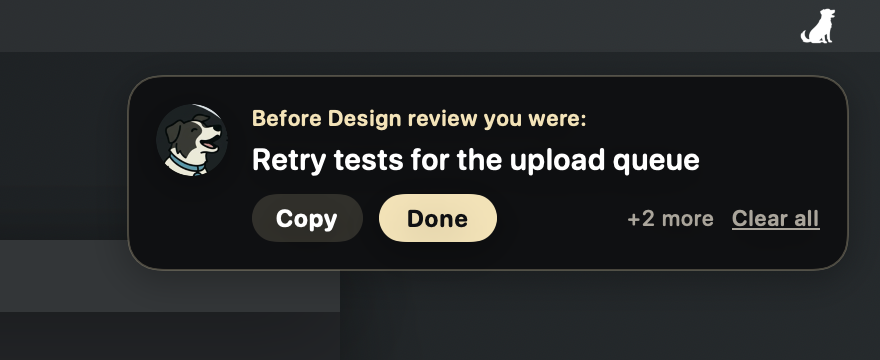
Before a meeting, jot down what you were in the middle of. When the meeting ends, Tug hands the note back.
Steps
- When the countdown pill shows, click What were you in the middle of?, type a few words and press Return.
- Or on the alarm, click Hold my place. Tug goes quiet while you type.
- The pill and the alarm show Tug is holding with your note, and Tug's menu lists it too.
- When the meeting ends, a card in the top right of your main display shows the note. Click Copy to put it on the clipboard, or Done to put the card away.
Questions
The meeting ended and no card showed up.
The card waits while your mic is still in use, so it shows up when the call is over. After 30 minutes past the scheduled end it shows anyway.
I skipped the meeting. Where is my note?
It comes back right away.
I held more than one note.
The cards stack newest first, the way macOS notifications do, with Clear all to put them all away.
How long is a note kept?
A note you leave on the card is cleared at 4 a.m. Done clears it now. Notes are kept only on your Mac.
Can I turn it off?
Yes. Turn off Ask what I was in the middle of in the Alerts tab.
Let your team know
Add your team's Slack channels and the alarm offers Let them know beside Hold my place. sheepdog never signs in to Slack and never sends anything itself.
Steps
- In Slack, use Copy link on the channel.
- Open Settings…, then the Calendars tab, and click Add channel under Slack. Give it a name such as #team and paste the link.
- When the alarm shows, click Let them know, then Running late or Can't make it.
- Slack opens on the channel with the message on your clipboard. Paste it and press Return to send.
Questions
What does each one say?
Running late copies "Running a few minutes late to Design review." and drops the alarm to the countdown pill, so the meeting is still tracked. Can't make it copies "I can't make Design review." and counts the meeting as skipped.
I don't see Let them know.
It shows on the full-screen alarm once a channel is added. The countdown pill does not have it.
It says the link isn't a Slack channel link.
Use Copy link on the channel itself. The link looks like https://yourteam.slack.com/archives/C0123ABCD.
I have more than one channel.
Let them know asks which channel first.
Quiet Tug for a while
Tug can stand down for one meeting or for a few hours.
Steps
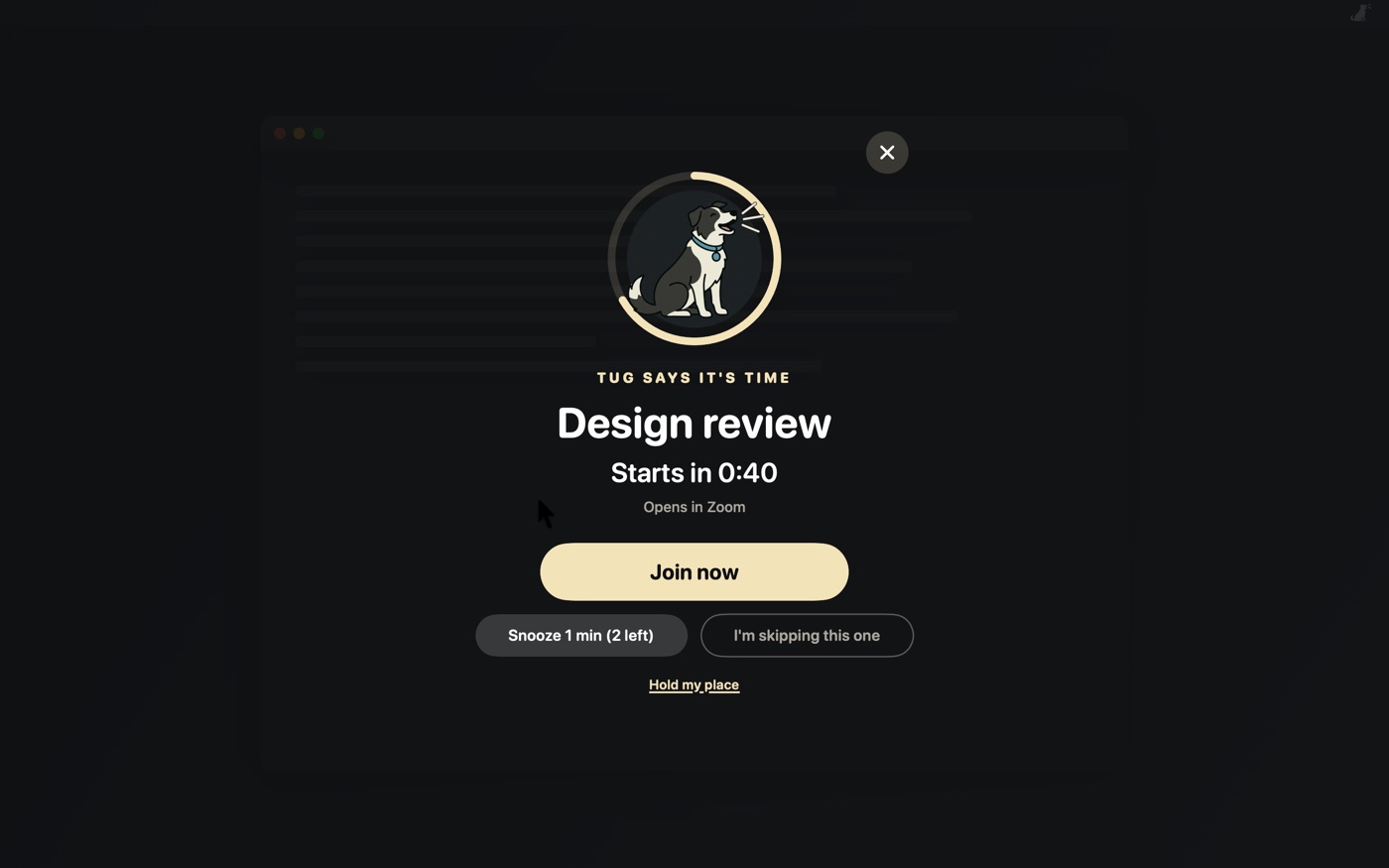
- On the alarm, Snooze drops back to the countdown for a minute, or 30 seconds once the meeting has started. Each meeting gets two.
- The X on the alarm stops the barking and leaves the silent countdown pill for that meeting. I'm skipping this one ends the alerts for it.
- For longer, open Tug's menu and choose Nap time, then For 1 hour, For 3 hours, until morning, or Until I wake him.
- Choose Wake Tug from the menu to end a nap early.
Questions
Snooze says Tug is out of patience.
The meeting's snoozes are used up. Change Snoozes per meeting in the Alerts tab.
I joined from my phone and the alarm kept going.
Tug listens for your Mac's mic. Starting a call once a meeting is about to begin counts as joining it and quiets its alarm, but a call on another device does not. Close the alarm with its X.
A meeting was due while Tug napped.
When he wakes, a meeting already in its alert window alerts right away.
Can I hide the countdown pill?
Its X hides it for that meeting, and the alarm still comes a minute before the start. Turn off Show the floating countdown in the Alerts tab to stop showing it at all.
Make Tug yours
Warning times, sounds, volume and colors are all in Settings. The setup window asks about warning times and holiday outfits on first run.

Steps
- Open Settings…, then Alerts. Warn at takes minutes before the meeting, separated by commas, and starts at 10, 5. The full-screen alarm comes 60 seconds before the start and keeps at you for 10 minutes after.
- In Sound, pick the Warning chime and Alarm sound from Tug's barks or any macOS sound. The play button lets you hear one first.
- In Look, pick Tug's collar, which also colors the alarm, the countdown and the hand-back card. Pick Custom to choose your own background, ring and buttons, collar and already-started colors; Tug works out the rest so the text stays readable, and the color panel takes a hex value or a drag around the wheel. In General, turn on Start Sheepdog at login.
- Click Test the alarm at the bottom of Settings, or in Tug's menu, to run a pretend meeting through the whole thing. While Tug naps, the test runs without sound.
Questions
The alarm plays on my speakers with headphones on.
Play alerts on starts at Current output and built-in speakers. Pick Current output (headphones if connected) to keep it in your headphones.
Why did my volume go up?
Unmute and raise volume during the alarm unmutes your Mac and raises it to at least 60% while Tug barks, then puts it back. Turn it off or move the slider in the Sound tab. The Bark volume slider there sets how loud Tug is.
Why did Tug bark while my Mac was muted?
That is the Unmute and raise volume during the alarm toggle in the Sound tab. On, Tug unmutes your Mac so you never miss a meeting. Off, Tug stays quiet while your Mac is muted, and the alarm still shows on screen.
Start at login did not stick.
macOS needs you to allow Sheepdog in Login Items. Click Open Login Items in the General tab.
How do I start over?
Restore defaults, at the bottom of Settings, puts every setting back. Your Slack channels, Tug's collar, his holiday outfits, his holiday tunes and sign-ins stay.
Why is Tug wearing a hat?
Tug dresses up in the days around seven holidays: a party hat for New Year's (Dec 27 to Jan 2), a heart headband for Valentine's Day (Feb 10 to 14), a green top hat for St. Patrick's Day (Mar 13 to 17), bunny ears for Easter (the Saturday before through the Tuesday after), a vampire cape for Halloween (Oct 24 to 31), a turkey hat for Thanksgiving week (Monday to Sunday), and a Santa hat for Christmas (Dec 18 to 26). The outfit goes over any collar and shows on the alarm, the countdown pill, the hand-back card and Settings. The menu bar keeps plain Tug. Outfits start off. Turn on Dress Tug up for holidays in the Look tab or on the setup window's dress-up step.
Why is Tug barking Jingle Bells?
In the same days as his outfits, the alarm barks a holiday tune instead of the plain bark: Auld Lang Syne for New Year's, Let Me Call You Sweetheart for Valentine's Day, The Irish Washerwoman for St. Patrick's Day, In the Hall of the Mountain King for Halloween, Over the River and Through the Wood for Thanksgiving, and Jingle Bells for Christmas. Every note is Tug's own woof. The Sound tab names this week's tune with a button to hear it. The tune plays only when the alarm sound is one of Tug's. Tunes start off too. Turn on Bark holiday tunes in the Sound tab or on the same setup step.
Install, update and move your settings
sheepdog is signed and notarized, so it opens like any other Mac app. It runs on Apple silicon and Intel Macs with macOS 14 or later.
Steps
- Download the disk image from the home page, open it and double-click Sheepdog. Click Install and it copies itself into Applications, starts from there, ejects the disk image and moves it to the Trash. With Homebrew, run
brew install --cask dcadolph/tap/sheepdoginstead. - Every six hours sheepdog asks GitHub for the latest release. When a newer one is out, it downloads, verifies and installs it for you at a quiet moment.
- To move to another Mac, open Settings…, then General, and click Export settings…. On the other Mac, click Import settings… and pick the file.
Questions
I dragged Sheepdog to Applications instead.
That works too. It asks once before moving the disk image to the Trash.
When does an update install?
At a quiet moment. Never during an alarm, a call, off hours, a meeting under way or within 15 minutes of the next meeting, or while a Sheepdog window is open, and only after 30 seconds without keyboard or mouse input. If there is no quiet moment before you quit, it installs on the next launch. Before installing, sheepdog checks the download's hash, its Apple Developer ID signature and notarization. If the new version does not start, sheepdog puts the previous one back and a card says so.
How do I turn automatic updates off?
Open Settings…, then General, and turn off Install updates automatically. Tug's menu then shows "Sheepdog X is available" and opens the release page. Turn off Check for updates to stop the checks too. With Homebrew, brew upgrade leaves sheepdog to update itself, and brew upgrade --greedy --cask sheepdog forces it.
How do I check for an update now?
Pick Check for Updates… in Tug's menu. A dialog says whether a newer Sheepdog is out. Update Now there installs it right away, but only when Sheepdog runs from Applications. Otherwise the button is View Release.
What does the update check send?
Nothing about you. It sends no version or identifier. The download itself comes from GitHub's release files.
What is in the exported file?
Your warnings, sounds, filters, working hours and Slack channels. Sign-ins stay in your Keychain, so connect your calendars again after importing on a new Mac.
How do I check a download is real?
The README's Verify the download section has the commands.